
Operating System
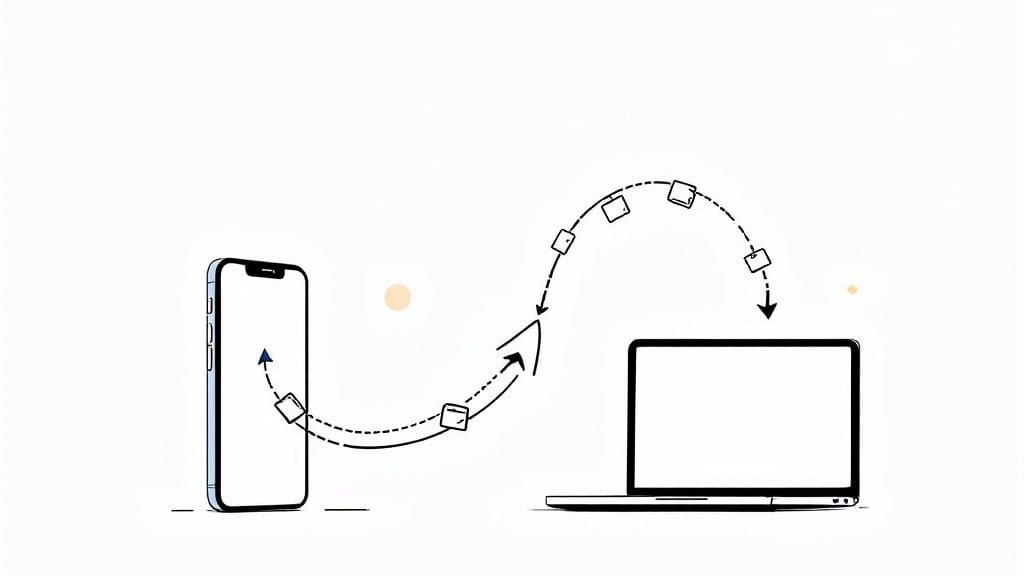
Transferring files from my Android phone to my PC used to be a headache—until I discovered these five foolproof methods that work every time. 💻 Whether you're moving photos, documents, or app data, you won’t need special software or tech skills to get it done.
The key is knowing which method fits your situation best, from quick USB transfers to wireless options that keep your phone charged while files copy.
My go-to approach depends on the file size and urgency. For small files, I use Android’s built-in USB cable transfer—just plug in, select "File Transfer" mode, and drag files like you would on any other drive.
Larger batches or wireless transfers? I rely on Google Drive or Nearby Share (built into Android) to send files instantly without cables. Both methods are secure, free, and work across any modern PC or laptop.
You’ll save hours of frustration and avoid common pitfalls like driver errors or hidden files. I’ll walk you through each method step-by-step, including how to troubleshoot permission issues or missing files.
Plus, I’ll share my three most-used shortcuts—like enabling "USB debugging" for advanced transfers or using ADB commands to move files directly from the command line if you’re comfortable with terminal work.
No matter which method you pick, you’ll end up with a seamless process that works the first time. The best part? Once you’ve set up one method, the others become even easier. Let’s get started—your files (and sanity) will thank you.
📚 In This Guide
- What you need
- Instructions
- Tips and common mistakes
- Wrapping up and next steps
What you need
- ● Android smartphone/tablet: Any device running Android 5.0 (Lollipop) or higher.
- ● PC (Windows or Mac): Windows 7 or later (Windows 10/11 recommended for best compatibility).
- ● Mac OS X 10.10 or later (for wired methods like MTP).
- ● USB cable: Original or high-quality third-party cable (preferably USB-C or micro-USB, depending on your device). Quantity: 1.
- ● Wi-Fi connection: Stable internet (for wireless methods like Wi-Fi Direct or cloud services).
- ● Third-party apps: Tools like Send Anywhere, Xender, or Feem (for wireless transfers).
- ● Cloud storage accounts: Google Drive, Dropbox, or OneDrive (if using cloud-based methods).
- ● OTG adapter: For connecting external drives or additional peripherals (if needed).
- ● File manager app: Like Solid Explorer or FX File Explorer (for easier file navigation on Android).
Instructions for moving files between Android and PC seamlessly
Here's how I transfer files between devices without losing data or patience.
🔧 Step 1: Choose Your Connection Method
Start by deciding between wired or wireless transfer. For wired, you'll need a USB-C to USB-A cable (most modern Android phones use USB-C). Wireless options include Google Nearby Share (built into Android 10+) or third-party apps like Send Anywhere or Snapdrop. I always check battery levels first—wireless transfers can drain power faster than expected.
If you're using Wi-Fi Direct (like Nearby Share), ensure both devices are on the same network. For wired transfers, plug the cable into your phone first, then into the PC. The phone should prompt you to select a transfer mode—choose File Transfer (MTP) mode, not charging or USB tethering. This ensures your PC recognizes the device as a storage drive.
🖱️ Step 2: Set Up the Transfer Connection
For wired transfers, your PC should automatically detect the Android device. If it doesn't, open File Explorer and look under This PC—your phone should appear as a removable drive labeled with its name. If prompted, tap Allow on your phone to authorize the connection. This step is critical; skipping it can leave your files inaccessible.
For wireless transfers, open the chosen app (e.g., Nearby Share) on both devices. On your PC, use a companion app like Nearby Share for Windows or a browser-based option like Snapdrop. Select your phone from the list of available devices. The connection should establish within 5-10 seconds, indicated by a notification on both devices. If it fails, restart the apps or check your phone's Wi-Fi settings.
💻 Step 3: Copy Files to or From the Device
Once connected, navigate to the files you want to transfer. For wired transfers, open the phone's storage in File Explorer and drag files to your PC's desired folder, just like copying between drives. For large files (over 1GB), I recommend wired transfer—it's faster and more stable. Wireless methods can struggle with buffering or interruptions.
For wireless transfers, select the files in the app and choose your PC as the destination. The transfer speed depends on your Wi-Fi strength—expect 5-10 MB/s for Nearby Share and slightly faster with Snapdrop. Monitor the progress bar closely; if it stalls, retry the transfer or switch to a wired connection. Avoid multitasking during large transfers to prevent interruptions.
💡 Step 4: Verify and Clean Up
After the transfer completes, double-check the files on your PC. Open a few to confirm they're intact—corrupted files are rare but can happen with unstable connections. For wired transfers, safely eject the device by right-clicking its icon in File Explorer and selecting Eject. On your phone, unplug the cable or tap Disconnect in the notification panel.
For wireless transfers, close the app on both devices and clear any temporary files. On your phone, go to Settings > Apps > [App Name] > Storage and clear cache to free up space. This step keeps your devices running smoothly for future transfers. I also recommend backing up critical files to cloud storage as a secondary precaution—it's a habit that saves headaches later.
Tips & tricks for transferring files between Android and PC without stress
These practical tips will help you avoid common pitfalls and make your file transfers smoother than ever.
Connection Mode Matters: In Step 1, when choosing between wired and wireless, consider your file sizes. For anything over 1GB, wired transfers are your best bet—they're more stable and faster. I've seen wireless transfers stall or corrupt files when dealing with large video or photo collections. If you're transferring multiple large files, plug that USB-C cable in first thing.
Wi-Fi Optimization: For wireless transfers in Step 2, make sure both devices are connected to the same 5GHz Wi-Fi network if available. The 5GHz band offers less interference and better speeds than 2.4GHz, especially when transferring files. Also, close other bandwidth-heavy apps like video streaming or online gaming before starting your transfer—this gives your connection dedicated resources.
File Organization Strategy: Before transferring in Step 3, organize your files into logical folders on your Android device. This makes it easier to select multiple files at once and keeps your PC's destination folder tidy. I like to create folders by date or project type—it saves time during future transfers and makes file management much simpler. For example, name folders "2023VacationPhotos" instead of just "Photos".
Post-Transfer Verification: In Step 4, don't just assume your files transferred successfully. Take an extra 30 seconds to verify critical files by opening them on your PC. I've caught corrupted downloads this way that would have gone unnoticed otherwise. For important documents, consider using a checksum tool to verify file integrity after transfer—it's an extra step that can save hours of frustration later.
Pro Tips for Transfer Files From Android To Pc
- These practical tips will help you avoid common pitfalls and make your file transfers smoother than ever.
- Connection Mode Matters: In Step 1, when choosing between wired and wireless, consider your file sizes.
- Wi-Fi Optimization: For wireless transfers in Step 2, make sure both devices are connected to the same 5GHz Wi-Fi network if available.
Frequently asked questions
Got questions about transferring files from your Android to PC? You’re not alone—here are the most common concerns and quick fixes to keep things smooth!
Can I transfer files without a USB cable?
Wireless methods like Wi-Fi Direct, cloud storage (Google Drive, Dropbox), or apps like AirDroid let you skip the cable. Just ensure both devices are on the same network or use a dedicated transfer app for hands-free convenience.
How long does file transfer take?
Transfer speeds vary: USB (wired) is fastest (1-10+ MB/s), Wi-Fi averages 1-5 MB/s, and Bluetooth is the slowest (0.1-1 MB/s). Large files (e.g., 4K videos) may take minutes—patience pays off! For speed, use a high-speed USB port or 5GHz Wi-Fi.
What if my PC doesn’t detect my Android device?
Try these fixes:
- Enable USB debugging (Developer Options),
- Use MTP mode (not just "File Transfer"),
- Restart both devices, or
- Update USB drivers. If all else fails, switch to a wireless method like Nearby Share or a third-party app.
Can I transfer files selectively instead of the whole device?
Yes! Most methods let you pick specific files/folders. In File Manager (Android) → "Share" → "Computer", or use apps like Send Anywhere or Feem to send only what you need. No clutter, just efficiency!
Is transferring files secure?
Wireless transfers (Wi-Fi/Bluetooth) can be intercepted—always use password-protected networks or encrypted apps (e.g., AirDroid with 2FA). For sensitive data, stick to wired USB (MTP) or cloud services with end-to-end encryption. Double-check permissions too!
Wrapping up and next steps
Transferring files from your Android device to your PC doesn’t have to be a headache—whether you’re using a USB cable, Wi-Fi, or cloud services, there’s a method for every need. 🎉 With the right tools and a few simple steps, you can seamlessly move photos, videos, and documents without stress.
Now that you’re equipped with the know-how, why not try it today and reclaim that extra storage space on your phone?
Still unsure? Pick one method from this guide and give it a shot—you’ll be a pro in no time! 🚀