Tip & Trick
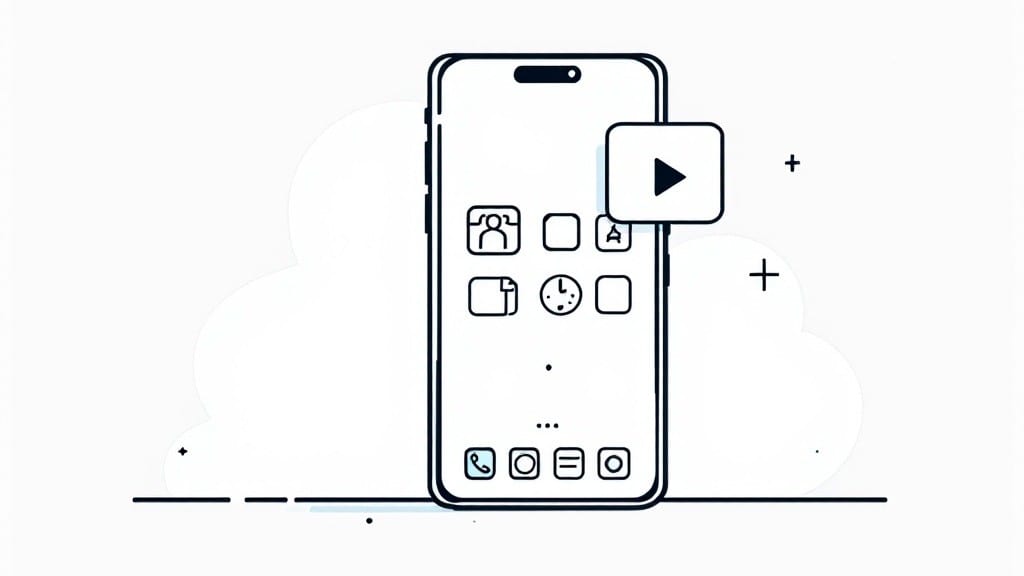
Adding shortcuts to your home screen turns your device into a productivity powerhouse—no more digging through menus to launch your favorite apps. ✨ I’ve spent years watching people waste seconds (or minutes) hunting for shortcuts, and the fix is always the same: one tap away.
Whether you’re using Windows, macOS, or a mobile device, the process is shockingly simple once you know the right steps.
Every operating system handles shortcuts slightly differently, but the core idea stays the same: drag, drop, and go. On Windows, you’ll use the Start menu or desktop; macOS lets you create app folders or drag from Launchpad.
Mobile devices like Android and iOS make it even easier with their built-in widgets and app shortcuts. The key is knowing where to find the hidden "Add to Home Screen" option—because it’s not always where you’d expect.
You’ll end up with a clutter-free, personalized launchpad that puts your most-used tools at your fingertips. No more tab-switching fatigue or buried app icons—just instant access to everything you need.
And if something goes wrong? I’ve got troubleshooting tips for when shortcuts disappear or permissions act up, so you’re never stuck.
Works across all major platforms, and the steps take less than a minute once you’ve done it once. Let’s get those shortcuts set up—permanently.
📚 In This Guide
- What you need
- Instructions
- Tips and common mistakes
- Wrapping up and next steps
What you need
- ● Smartphone or tablet (iOS 14+ or Android 8.0+ recommended for best results)
- ● Stable internet connection (Wi-Fi or mobile data, depending on the app)
- ● App you want to add as a shortcut (e.g., Google Maps, Spotify, or any web link)
- ● Home screen space (at least 1 empty spot to place your shortcut)
- ● Screen recording tool (to demo your shortcuts later—apps like Loom or AZ Screen Recorder work great)
- ● Third-party launcher (e.g., Nova Launcher for Android if you love customization)
- ● Folder organization tips (to keep your home screen clutter-free)
Step-by-Step instructions for customizing your home screen
Here's how to create instant access to your favorite apps and tools—no tech skills required.
🖱️ Step 1: Open the App You Want to Shortcut
Locate the app or website you want to pin to your home screen. On a desktop, this is typically an app like Chrome, Files, or Calculator. On mobile, open the app from your app drawer or home screen.
For web shortcuts, open your browser and navigate to the specific page. Make sure you're on the exact page you want to shortcut—this ensures the icon matches the content.
Here's the thing—if you're using a mobile device, some apps like Chrome may require you to open the page first before creating the shortcut. On desktop, you can often drag directly from the taskbar.
💻 Step 2: Create the Shortcut
On Windows, right-click the app's icon in the taskbar and select Pin to taskbar. For a web shortcut, right-click the tab in Chrome or Edge and choose Create shortcut. Move the new shortcut to your desktop or Start menu.
On macOS, right-click the app in the Dock or Finder and select Options > Keep in Dock. For web shortcuts, open Safari, right-click the bookmark bar icon, and choose Add to Dock.
On Android, long-press the app icon and drag it to your home screen. For web shortcuts, open Chrome, tap the three-dot menu, go to Add to Home screen, and confirm.
I always double-check that the shortcut appears exactly where I want it—this avoids the frustration of hunting for it later.
🖥️ Step 3: Organize Your Shortcuts
Now that your shortcut is in place, arrange it logically. On desktop, you can group related shortcuts by creating folders—right-click the desktop, select New > Folder, then drag shortcuts inside.
On mobile, long-press the shortcut and drag it to a new position. Many Android devices let you create folders by dragging one icon onto another. iPhones require you to tap Edit on the home screen first.
This is the moment that matters: take a second to visualize how you use your device. Place frequently used apps where your fingers naturally land—this saves time every day.
⏰ Step 4: Verify and Test Your Shortcuts
Tap or click each shortcut to confirm it opens correctly. For web shortcuts, verify that the page loads as expected—some may require you to sign in again after the shortcut is created.
If a shortcut doesn't work, check that the app is properly installed or that the web page is accessible. On mobile, some shortcuts may need to be updated if the app changes its icon or URL.
Real talk: I've seen shortcuts fail when the app updates its permissions. Always test after major system or app updates to ensure everything still functions.
Tips & tricks for perfect home screen shortcuts
Want your shortcuts to work flawlessly and stay organized? Here are the tricks that'll save you time and frustration.
Double-Check the Page First: In Step 1, when creating web shortcuts, make sure you're on the exact page you want to pin. I've seen shortcuts that opened to a login screen or a different section because the wrong page was selected. For example, if you're pinning your email inbox, navigate directly to your inbox—not the login page or settings menu.
Desktop Shortcut Placement: After creating your shortcut in Step 2, take a moment to visualize your workflow. Place frequently used shortcuts where your hand naturally lands—this is especially important for desktop users who reach for the taskbar. I always arrange mine in order of daily importance, starting from left to right.
Mobile Organization Hacks: When organizing in Step 3, consider creating folders for different categories like "Work," "Social," or "Utilities." On iPhones, tap "Edit" on your home screen to rearrange icons—this gives you more control than just dragging. For Android, you can create folders by dragging one icon onto another, which is a handy trick I use for grouping related apps.
Update Verification: After completing Step 4, set a reminder to test your shortcuts every few weeks. Apps and websites update frequently, and sometimes these updates can break shortcut functionality. I've caught multiple shortcuts that stopped working after app updates—testing regularly prevents frustration later.
Pro Tips for Add Shortcuts To Home Screen
- Want your shortcuts to work flawlessly and stay organized? Here are the tricks that'll save you time and frustration.
- Double-Check the Page First: In Step 1, when creating web shortcuts, make sure you're on the exact page you want to pin.
- Desktop Shortcut Placement: After creating your shortcut in Step 2, take a moment to visualize your workflow.
Frequently asked questions
Got questions about adding shortcuts to your home screen? You’re not alone! Here are answers to the most common queries to help you get the most out of this handy feature.
Can I add shortcuts to the home screen on any device?
Most modern smartphones and tablets—like iPhones (iOS 14+), Android devices (varies by OS version), and even some smart TVs—support home screen shortcuts. However, the process differs slightly. Check your device’s settings or app drawer for the "Add to Home Screen" option.
How long does it take to add a shortcut?
Adding a shortcut is super fast—usually just a few taps! On average, it takes under 10 seconds once you know where to look. For web shortcuts, you might need to confirm the app name or icon, but it’s still quick.
What if the "Add to Home Screen" option is missing?
If the option is grayed out or missing, try these fixes:
- Update your device’s OS to the latest version.
- Check if the app supports shortcuts (some older apps may not).
- For web pages, ensure you’re on a mobile-friendly site.
- On Android, some launchers (like Nova or MIUI) have custom shortcut menus.
Can I organize shortcuts like folders on my home screen?
Once added, you can drag and drop shortcuts to rearrange them. Create folders by tapping and holding a shortcut, then dragging it over another to group them. This keeps your home screen clutter-free and efficient.
Will adding a shortcut drain my battery or storage?
Nope! Shortcuts are lightweight—they don’t consume extra battery or storage. They’re just quick links to apps or web pages. However, if you add too many, your home screen might feel slower to load, so keep it tidy.
Wrapping up and next steps
Adding shortcuts to your home screen is a game-changer—it saves time, boosts productivity, and keeps your favorite apps just a tap away! 🚀 Whether you're using an iPhone, Android, or even a desktop, these simple steps make your digital life smoother.
Now that you’ve mastered the trick, why not customize your home screen further? Try organizing apps by color, creating folders for work vs. play, or exploring widgets for extra functionality. Your device is your toolkit—make it work for you!