
Troubleshooting
IT support teams lose countless hours searching for solutions to recurring tech problems. These 10 knowledge base articles cover the most common issues—from printer errors to software crashes—with step-by-step fixes that save time and reduce frustration for both agents and end-users.
Windows Blue Screen Error Recovery Guide

A Blue Screen of Death (BSOD) can freeze your entire system in seconds, but this guide cuts through the panic with actionable steps for memory dumps, driver conflicts, and hardware diagnostics—no guesswork required.
Start by identifying the error code (e.g., IRQLNOTLESSOREQUAL or PAGEFAULTINNONPAGEDAREA) to pinpoint the root cause. Use Windows Event Viewer to analyze memory dumps for clues, then systematically test drivers via Safe Mode or System File Checker (sfc /scannow). For stubborn issues, the guide includes manual registry tweaks and third-party tools like BlueScreenView to decode complex crashes.
Perfect for IT admins managing fleets of Windows machines or power users who need to recover from hardware failures without reinstalling the OS. No more wasted hours on generic advice—just battle-tested solutions. ⚡
Office 365 Login Authentication Troubleshooting

When your team’s productivity hinges on seamless access to Office 365, authentication failures can turn into costly downtime. This guide tackles multi-factor authentication (MFA) timeouts, endless password reset loops, and account lockouts—three pain points that disrupt hybrid and remote workflows faster than you can say "security token expired."
Start by verifying conditional access policies in the Azure AD portal, where misconfigured rules often trigger MFA failures. For reset loops, use the "Forgot Password" flow with Microsoft Authenticator app backups as a fallback, and clear browser cache if prompts freeze. Locked accounts? Reset via PowerShell with Unlock-MsolUser or adjust sign-in thresholds in Security & Compliance Center to prevent false positives.
Perfect for IT admins managing hybrid teams or help desk agents fielding authentication tickets daily. With remote work here to stay, this battle-tested setup keeps your team connected. ⚡
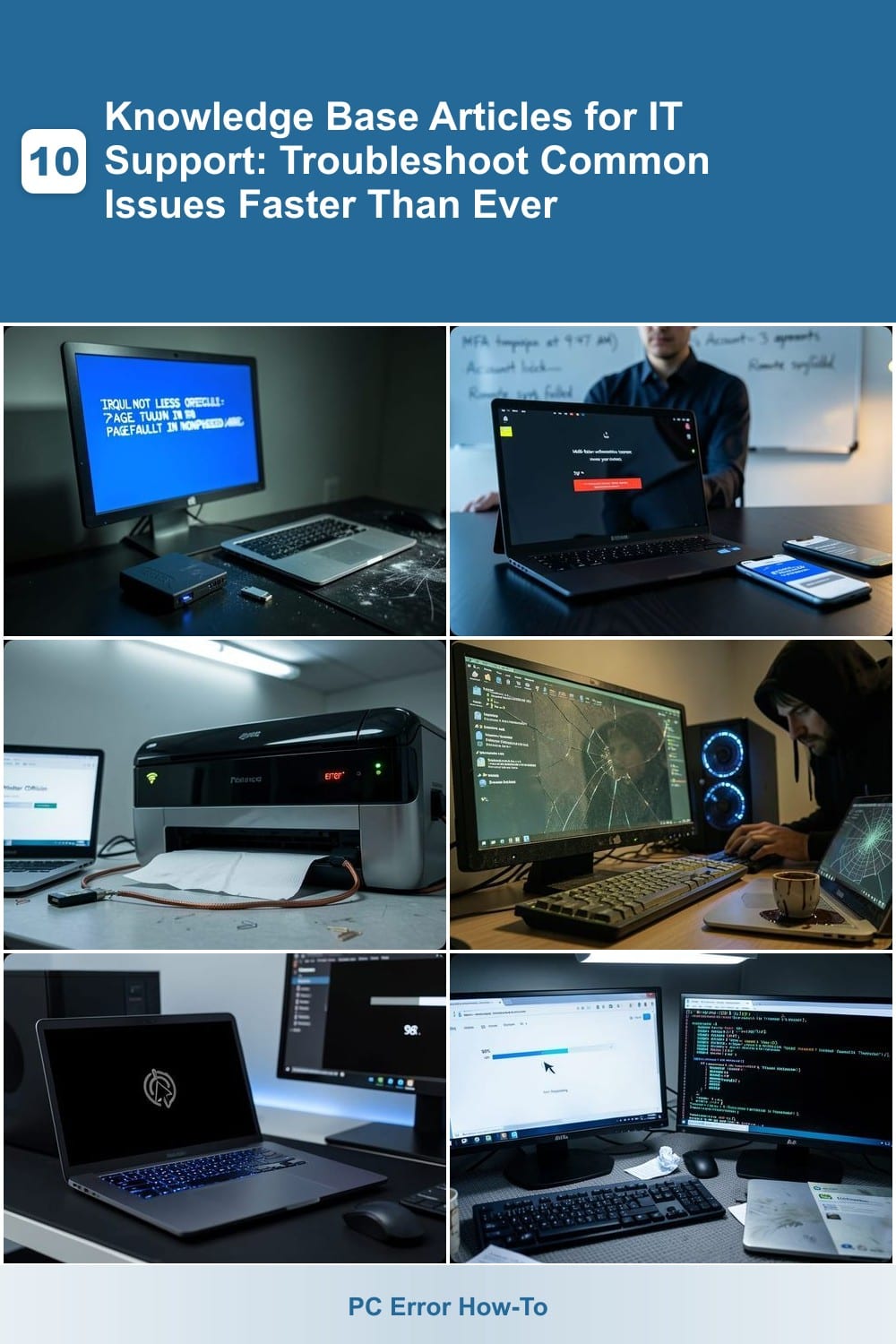
Printer Connection Issues Fixes
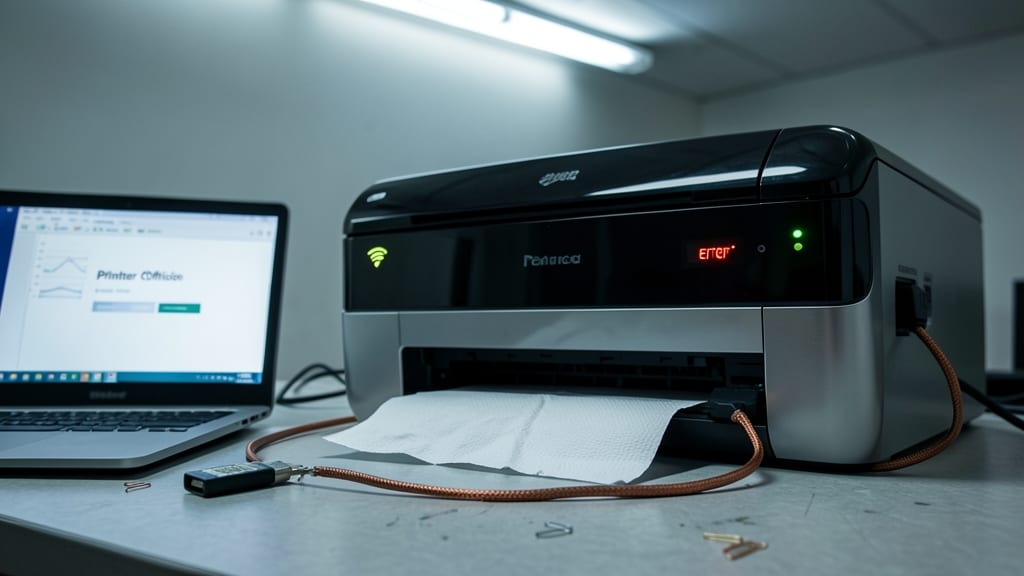
When your office printer suddenly stops responding—whether it’s a Wi-Fi dropout, a USB connection failure, or a network timeout—the last thing you need is a generic troubleshooting guide. These step-by-step fixes tackle the most common printer connection issues, including driver reinstallation, firewall conflicts, and IP address conflicts, so your team can get back to printing in minutes.
Start by verifying the printer’s IP address and ensuring it matches the network’s DHCP settings. If Wi-Fi is the culprit, reset the router and reconnect the printer—often, a simple power cycle resolves stubborn connectivity issues. For persistent problems, uninstall and reinstall the printer drivers using the manufacturer’s latest software, and temporarily disable the firewall to rule out security software interference. Pro tip: Use the printer’s built-in diagnostic tools (like HP’s EWS or Canon’s IJ Scan Utility) to pinpoint hardware or firmware glitches.
This guide is a lifesaver for IT admins managing shared office printers, help desk agents fielding connection complaints, and small business owners who can’t afford downtime. With clear screenshots and command-line fixes, it turns a frustrating issue into a quick resolution. 💪
Slow Computer Performance Optimization

When your computer feels like it’s running through molasses, it’s time to tackle the hidden culprits behind the sluggishness. Malware infections, bloatware, and disk fragmentation are the usual suspects—often lurking in the background while your system struggles to keep up. This guide cuts through the noise with actionable fixes tailored for end-users with older hardware or software overload.
Start by running a deep malware scan with tools like Malwarebytes or Windows Defender Offline. Next, disable unnecessary startup programs (Task Manager > Startup tab) to reclaim system resources. For fragmented disks, use Windows Defragmenter (or Optimize Drives in newer versions) to speed up file access. Bonus: Clear out temporary files with CCleaner or built-in Disk Cleanup to free up storage space.
This approach is perfect for casual users, students, or small business owners who need quick wins without diving into complex system tweaks. A few minutes of maintenance can transform a frustratingly slow machine into a responsive workhorse. 💻
MacOS Update and Recovery Mode Guide

When a Mac freezes mid-update or boots into a black screen with a spinning wheel, knowing how to force recovery can save hours of downtime. This guide covers stuck macOS updates, failed installations, and safe mode recovery—essential for IT teams managing mixed environments where Windows and Mac users rely on the same network resources.
Start by booting into Recovery Mode (hold Command + R at startup) to reinstall macOS or reset NVRAM. For failed updates, use the Terminal to verify disk permissions or reinstall the OS without losing data. The guide also includes troubleshooting for kernel panics and login loops, with clear steps for both Intel-based and Apple Silicon Macs.
Perfect for school IT admins managing labs or corporate help desks supporting remote workers—where a single Mac issue can disrupt an entire workflow. ⚡
Email Client Syncing Problems Solution

When your email client freezes mid-sync or stubbornly refuses to fetch new messages, the IMAP/SMTP troubleshooter becomes your lifeline. This guide tackles the most frustrating sync errors—like server timeouts or corrupted profile files—that derail workflows in Outlook, Gmail, and Thunderbird.
It includes step-by-step fixes for authentication failures, port conflicts, and even corrupted data files without losing emails. The article also covers how to reset SMTP credentials safely and verify SSL/TLS settings for secure connections. For IT teams, it highlights how to batch-apply fixes across multiple user profiles.
Perfect for remote workers, sales teams, and support agents who can’t afford email downtime. The structured approach ensures even non-technical users can resolve sync issues independently. 💪
VPN Connection Failures Troubleshooting
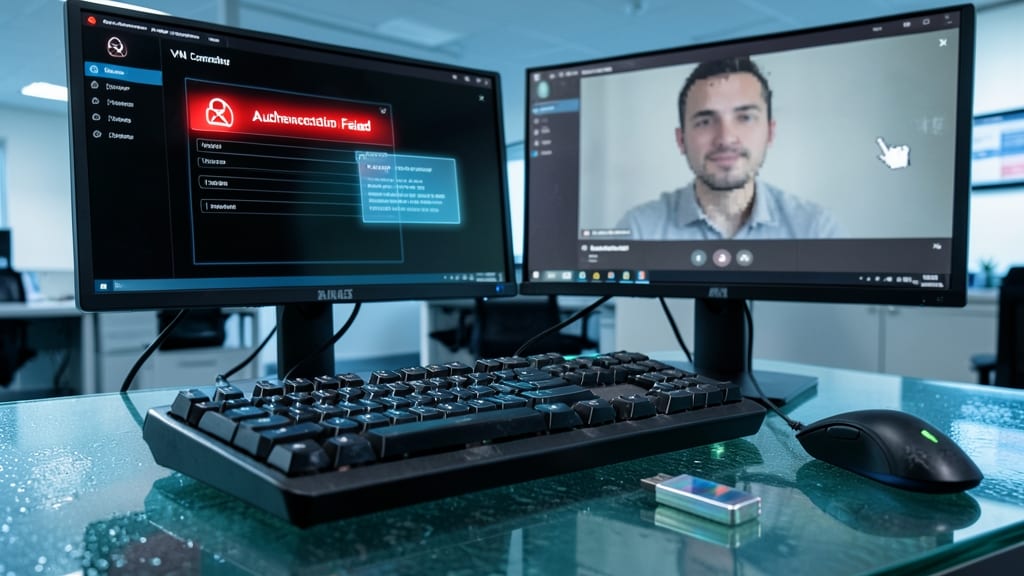
When your VPN connection drops mid-call or refuses to authenticate, it’s not just an inconvenience—it’s a productivity killer for remote teams. This troubleshooting guide dives into the three most frustrating VPN failures: authentication errors (like expired certificates or incorrect credentials), network restrictions (firewall or ISP blocks), and split-tunneling conflicts (where traffic rules clash with corporate policies).
Start by verifying OpenVPN or WireGuard protocol compatibility—some networks block older protocols like PPTP. For authentication, reset your certificate or pre-shared key (PSK) and check if your MFA token is synced. Network restrictions? Try switching to a UDP port (51820 for WireGuard) or contact IT to whitelist your VPN’s IP range. Split-tunneling issues? Disable conflicting routes in your VPN client’s settings or use a dedicated admin profile to isolate traffic.
This is non-negotiable for IT admins managing remote workforces or corporate security teams enforcing zero-trust policies. A single misconfigured VPN can expose sensitive data—so bookmark this for your next outage. ✨
Linux Terminal Command Recovery

When a Linux terminal freezes mid-command or throws cryptic permission denied errors, IT support agents need a battle-tested recovery toolkit—not just a generic "try rebooting" suggestion. This guide covers broken session recovery, corrupted .bashrc/zshrc fixes, and sudo access restoration with commands like Ctrl+Z, disown, and chmod tweaks that actually work.
You’ll master three critical scenarios: restarting stuck processes with kill -9, resetting terminal profiles via rm ~/.bash_profile, and regaining root access through single-user mode (init 1). The guide even includes preemptive checks like history command audits to spot malicious or accidental deletions before they cause outages. Perfect for sysadmins managing servers or desktops where CLI access is mission-critical.
Ideal for Linux admins and DevOps teams who need to troubleshoot remote servers or user workstations without physical access. No fluff—just the command-line Swiss Army knife for when the terminal itself turns against you. 💻
Hardware Device Driver Update Guide
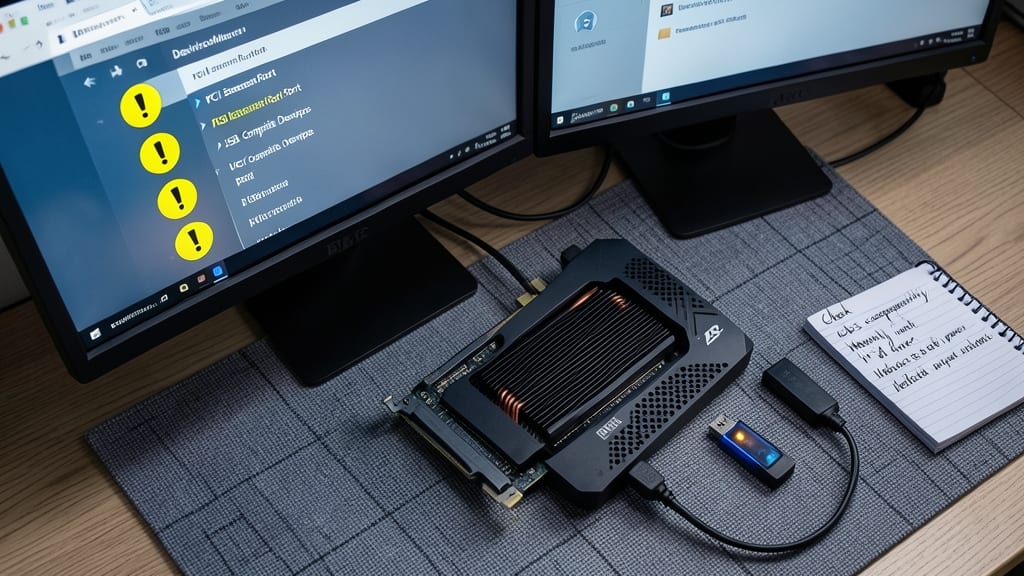
Ever installed a new graphics card or USB device only to be greeted by yellow warning icons in Device Manager? This guide cuts through the confusion with clear steps for manual driver installation, including how to verify compatibility with your OS version and hardware specs.
Learn how to troubleshoot common conflicts like missing drivers or hardware not being recognized, plus rollback procedures to revert to stable versions if a new update causes issues. Whether you're dealing with a gaming GPU, sound card, or external peripherals, this resource ensures your hardware works as intended without guesswork.
Perfect for IT pros managing fleets of devices or end-users upgrading their setups. ⚡
Password Reset and Account Lockout Recovery
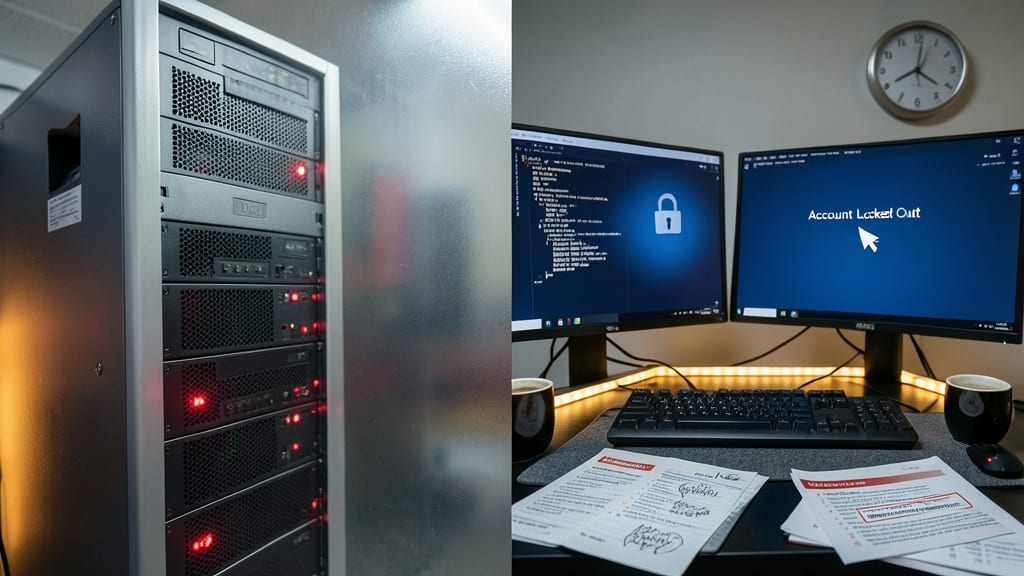
When a user gets locked out of their account—or worse, their entire domain—time is of the essence. This tiered recovery guide covers local, domain, and cloud lockouts with specific steps for each environment, from resetting a forgotten password to unlocking an Active Directory-inactivated account.
For local accounts, use net user commands or Control Panel recovery. Domain lockouts require AD tools like Active Directory Users and Computers or PowerShell cmdlets to reset group policies. Cloud accounts (Azure AD, Google Workspace) need self-service portals or admin intervention via the provider’s console. The guide also includes inactive account recovery, a critical fix for dormant profiles that trigger security flags. ⚡