PowerPoint
PowerPoint transitions can transform your presentation from basic to polished. These seven carefully selected transition effects help maintain professionalism, control pacing, and keep your audience engaged without distracting from your content.
Fade Slide Transition for Subtle Professionalism

For executives and boardrooms where every second counts, the Fade transition is the gold standard for polished professionalism. Unlike flashy animations, this effect dissolves slides seamlessly—keeping your audience focused on your message rather than the visuals.
Available in PowerPoint 2016 and later, the Fade transition offers customizable timing (from 0.5 to 5 seconds) and works with all slide layouts. Pair it with a subtle sound effect (like a soft chime) to add just enough sophistication without overpowering your content.
Ideal for quarterly reports, investor pitches, or training sessions, this transition ensures your presentation feels refined and intentional. Your data deserves this level of elegance. ✨
Push Slide Transition for Dynamic Storytelling

Need to turn your presentation into an engaging narrative? The Push Slide Transition adds visual momentum by sliding one slide horizontally into the next, creating a sense of forward motion that mirrors storytelling progression.
Available in PowerPoint 2016 and later, this effect works best with horizontal layouts and pairs well with sound effects for added impact. Unlike the subtle fade, the push effect subtly directs attention—perfect for storytelling workshops or creative pitches where pacing matters.
Ideal for educators, marketers, and creatives who want to guide their audience through a journey. Just avoid overusing it—keep it as a tool to enhance, not distract. ✨
Zoom Slide Transition for High-Impact Reveals
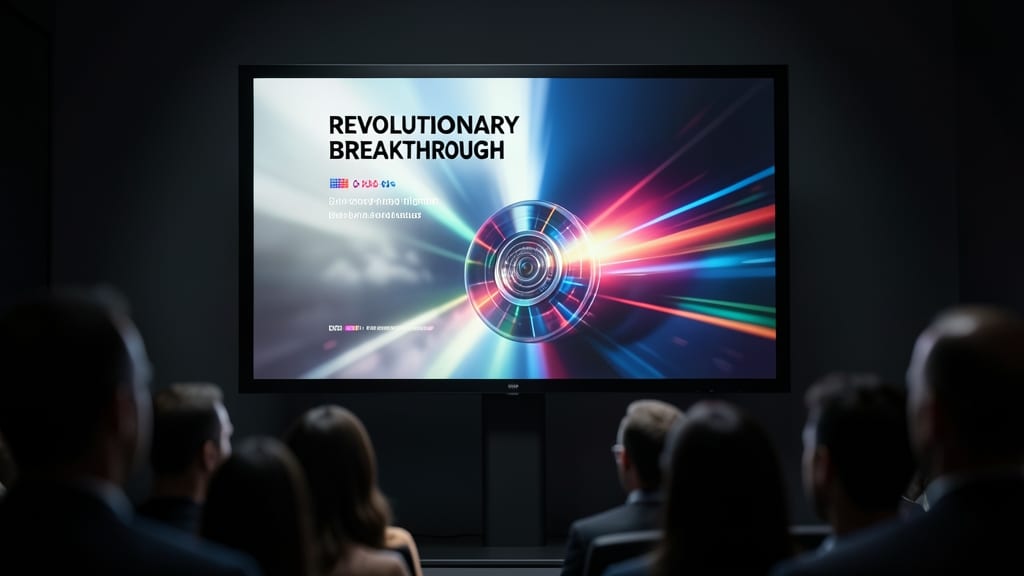
Need to make your audience lean in when the big reveal arrives? The Zoom transition in PowerPoint delivers exactly that—cinematic zoom effects that draw attention to pivotal slides like a spotlight. Unlike subtle fades or pushes, this transition uses a smooth zoom-in or zoom-out effect (configurable for direction and speed) to create suspense before unveiling critical content.
Customize the zoom speed (slow for dramatic buildup, fast for urgency) and pair it with a sound effect (like a subtle "whoosh") to amplify the impact. Works seamlessly in PowerPoint 2016 and later, including the desktop and online versions, and syncs perfectly with timing triggers for automated presentations.
Perfect for product launches, keynote speeches, or investor pitches where you want to highlight a game-changing slide—think of it as your presentation’s version of a drumroll. ✨
Wipe Slide Transition for Clean Visual Breaks

Struggling to keep learners engaged during a training session? The wipe transition in PowerPoint acts like a visual page-turner, instantly signaling a fresh topic without overwhelming your audience. Unlike flashy effects, it offers a clean, structured break—ideal for educational content where clarity matters most.
This transition works by sweeping a slide horizontally, vertically, or diagonally, creating a sharp visual separation between sections. You can customize the direction, speed, and even add a subtle sound effect to reinforce the transition. Perfect for lectures, workshops, or e-learning modules, it keeps the focus on your message while maintaining professionalism.
Trainers and educators will love how this effect organizes content visually, making it easier for audiences to follow along. Just avoid overusing it—save it for major topic shifts to keep your presentation polished and intentional. ✨
Morph Transition for Seamless Data Visualization
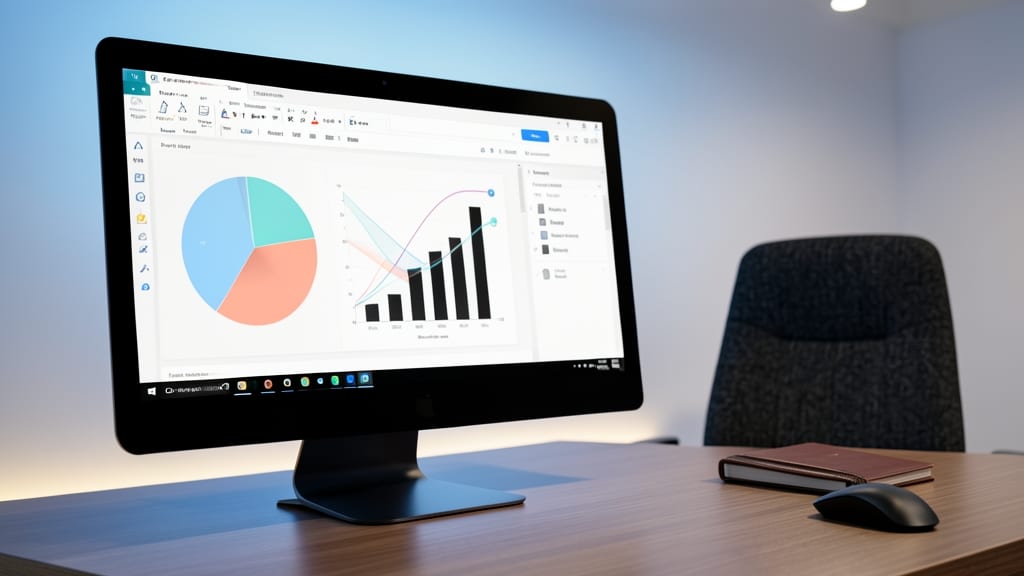
When your data tells a story but needs to evolve between slides, the Morph transition in PowerPoint becomes your secret weapon. Unlike static slides, this effect lets shapes, charts, or graphs seamlessly transform—turning a pie chart into a bar graph or adjusting a timeline with fluid motion, all while keeping your audience’s focus on the insights, not the transition itself.
Available in PowerPoint 2016 and later, Morph works best with vector-based objects (like SmartArt or basic shapes) and supports smooth scaling, rotation, and color shifts—ideal for financial forecasts or scientific comparisons. The transition speed is customizable, so you can control how long the morph takes, ensuring it doesn’t overshadow your content. For data-heavy decks, this is the only transition that maintains visual continuity without breaking the flow.
Finance analysts, researchers, and educators will love Morph for its ability to highlight data evolution without disrupting the narrative. Just ensure your objects are simple enough to animate—complex graphics may require tweaking. ✨
Slide Split Transition for Creative Segmentation
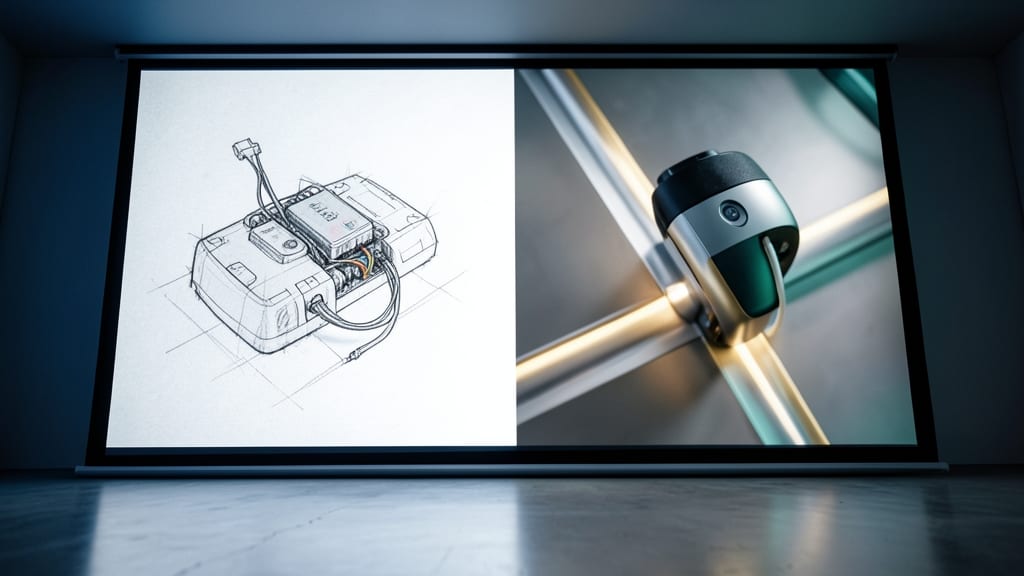
Need to showcase before-and-after designs, compare two products side-by-side, or highlight a split-screen analysis? The Slide Split Transition in PowerPoint delivers exactly that with a clean, dynamic divide. Unlike other transitions that blend slides, this one literally splits them—either vertically or horizontally—creating a visually striking contrast that keeps your audience’s focus on the comparison.
You can customize the split direction, speed, and even add subtle sound effects to emphasize key moments. It works seamlessly in PowerPoint 2016 and later, including the desktop and online versions, and pairs perfectly with timing adjustments to sync with your narration. For presentations where visual contrast matters—like design critiques, A/B testing, or dual-perspective arguments—this transition turns passive slides into an interactive experience.
Ideal for designers, marketers, and educators, this effect transforms static comparisons into engaging storytelling. Just avoid overusing it—save it for moments where the split truly enhances your message. ✨
3D Box Transition for Modern Design Presentations
Want to make your design-focused presentations pop without sacrificing professionalism? The 3D Box Transition in PowerPoint adds a modern, cinematic flair that’s perfect for architecture mockups, fashion lookbooks, or tech product demos.
This transition creates a smooth 3D lift effect, where slides appear to rise into a transparent box, giving your content a sleek, high-end feel. Unlike flashy animations, it’s subtle enough to keep the focus on your visuals while adding depth. Works seamlessly in PowerPoint 2016 and later, including the desktop and online versions.
Designers, creatives, and tech presenters will love how this transition elevates their work—ideal for pitches where visual impact matters as much as the message. ✨