Software
Microsoft Edge isn’t just a browser—it’s a productivity powerhouse packed with hidden features. These seven tips will transform your daily browsing into a faster, more secure, and efficient experience, whether you're working, gaming, or streaming.
Enable Immersive Reader for Focused Work
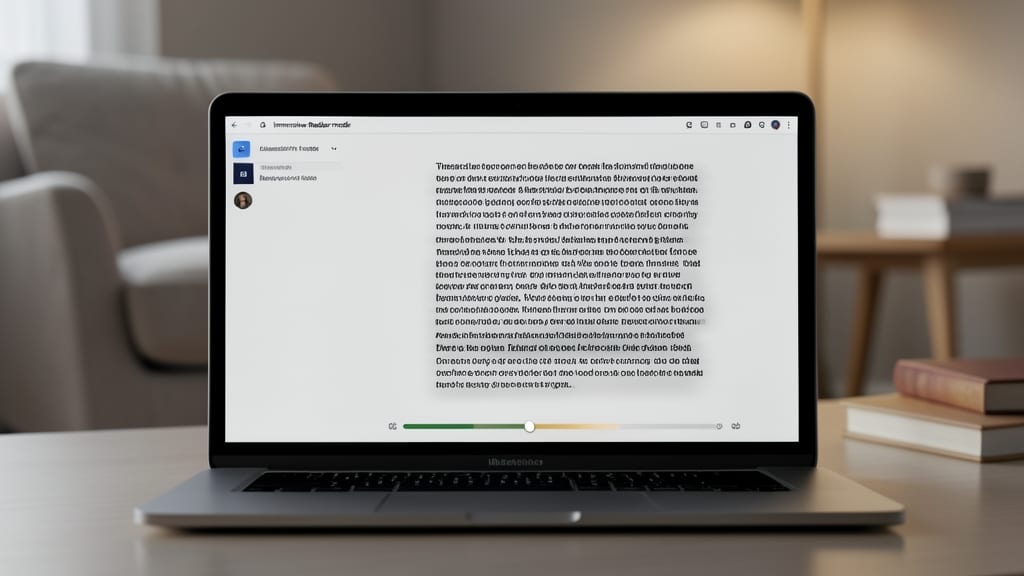
Drowning in tabs and notifications? Microsoft Edge’s Immersive Reader strips away distractions by transforming web pages into a clean, text-focused interface with customizable fonts, spacing, and even color schemes—like a digital reading nook for your screen.
With text-to-speech (in over 80 languages), you can listen while following along, perfect for absorbing dense articles or coding tutorials. The line focus mode highlights one line at a time to reduce eye strain, while page layout options let you switch between single-column or split-screen views. Best of all, it works on any webpage—no extra setup.
Students cramming for exams or professionals deep in research will love this zero-config focus tool. Try it next time you need to power through a lengthy document without losing concentration. ✨
Use Collections to Organize Research Instantly
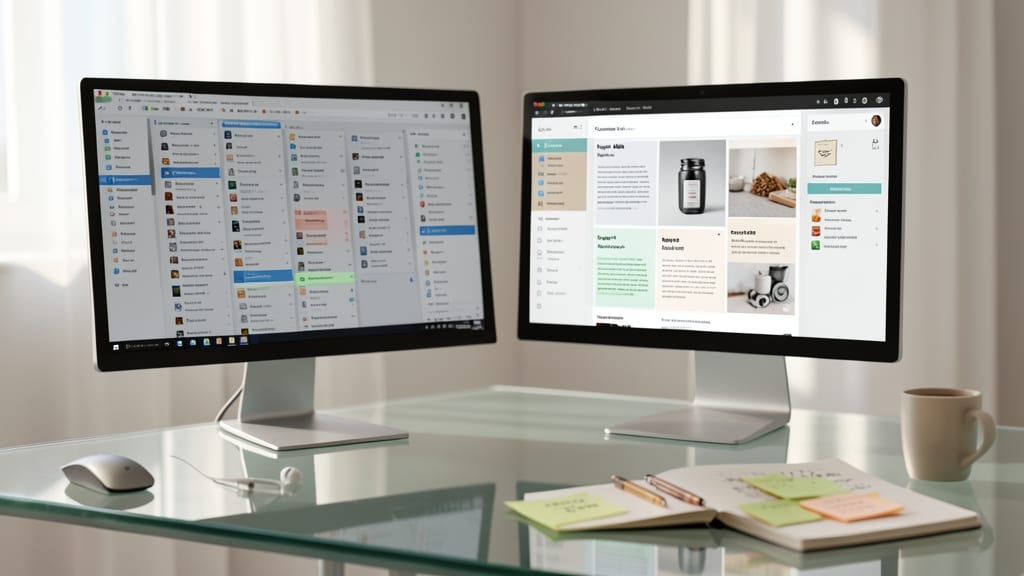
Drowning in tabs and scattered research notes? Microsoft Edge’s Collections turns chaos into clarity with a single click. This built-in tool lets you clip text, images, and links directly into visual boards—no third-party apps or messy bookmarks required.
Create unlimited themed collections (e.g., "Project X Research" or "Travel Planning") and drag content straight from any webpage. The magic? Cross-device sync ensures your notes appear instantly on your phone, tablet, or laptop—perfect for fieldwork or hybrid teams. Add sticky notes, highlights, or even annotate screenshots for deeper insights.
Researchers, students, and creatives will love how Collections replaces sticky notes and PDFs with an interactive workspace. Try it today by hitting Ctrl+Shift+S (Windows) or Cmd+Shift+S (Mac) to start clipping. ✨
Boost Performance with Vertical Tabs
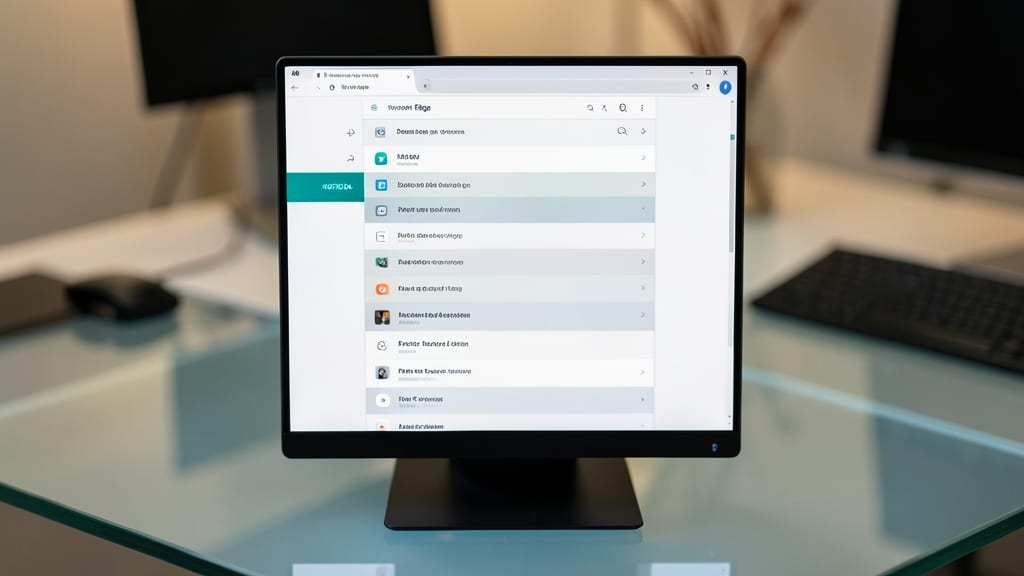
If you’re drowning in open tabs but refuse to let go of any project, Microsoft Edge’s vertical tabs are your lifeline. This feature transforms your browser into a sleek, space-saving powerhouse by stacking tabs vertically along the left side of your screen—keeping everything visible without the chaos of horizontal clutter.
Enable it in Settings > Appearance (toggle "Vertical tabs" under the Tabs section). Once active, you’ll love the instant overview of all open windows, the one-click access to any tab, and the minimalist layout that maximizes your workspace. Perfect for developers switching between code repos or content creators juggling research and drafts.
This is the ultimate multitasking upgrade for anyone who hates tab overload. It’s like having a second monitor for your tabs—without the extra hardware. ⚡
Enable Privacy-First Tracking Prevention
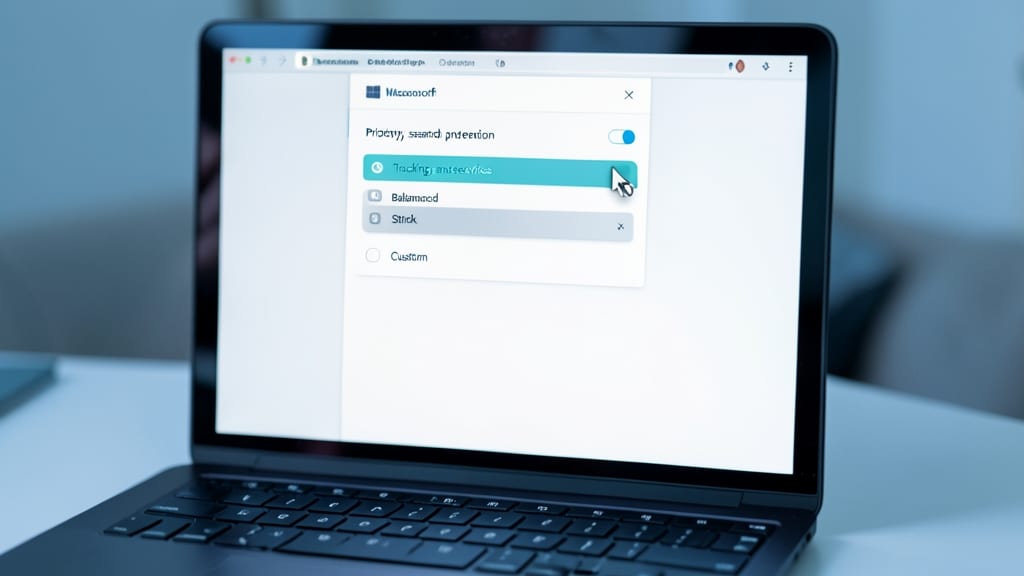
Worried about third-party trackers silently collecting your data while browsing? Microsoft Edge’s Privacy-First Tracking Prevention feature has your back—built right into the browser, no extensions needed.
Navigate to Settings > Privacy, search, and services, then toggle Tracking prevention to Strict mode. This blocks 99% of cross-site trackers by default, including ads and analytics scripts, while still letting you browse safely. Edge even updates its tracker list automatically, so you’re always protected against the latest threats. For extra control, whitelist specific sites under Exceptions if needed.
Perfect for privacy-conscious users, journalists, or anyone tired of ads following them across the web. It’s the easiest way to browse without leaving a digital footprint. ✨
Customize Startup Pages for Productivity
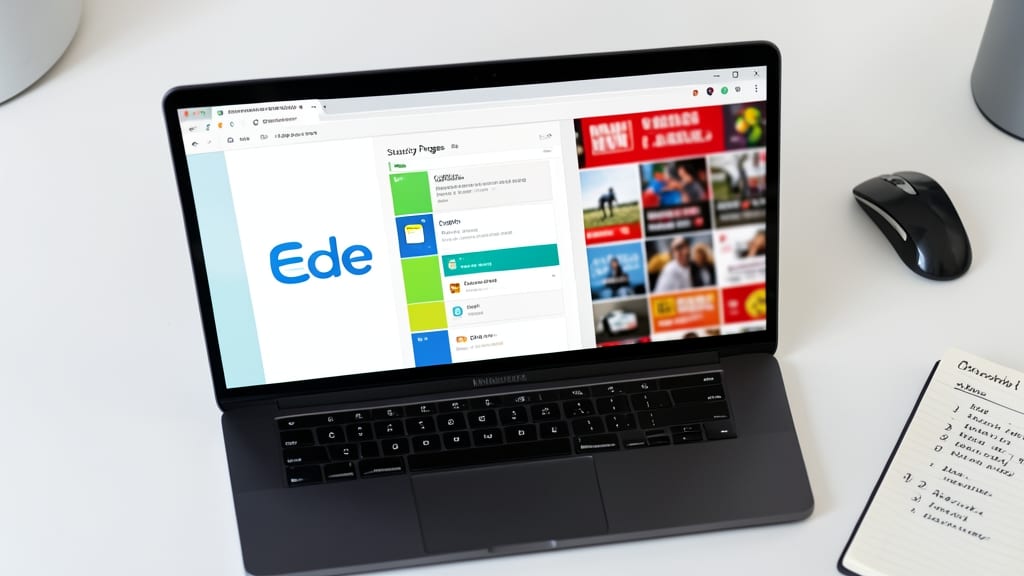
Tired of wasting time waiting for your browser to load default ads or irrelevant pages? Microsoft Edge’s Startup Pages feature lets you design a personalized launchpad that instantly loads your most critical tools—no extra clicks needed.
Simply pin your favorite productivity apps (like Trello, Outlook, or Notion) alongside news feeds or to-do lists. The feature supports custom layouts (grid or list view) and even lets you add a search bar for quick queries. With one-click access, you’ll skip the lag and dive straight into work mode every time you open Edge.
Perfect for remote workers, freelancers, or anyone who hates distractions—this tweak turns your browser into a zero-waste productivity hub. ✨
Speed Up Loading with Binge Mode
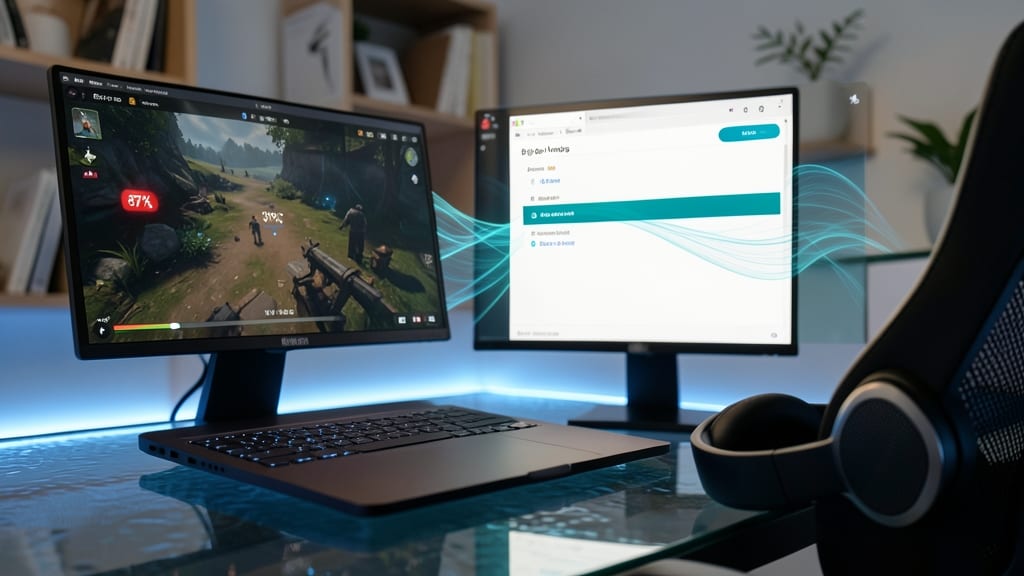
If you’ve ever struggled with buffering during a live stream or a game download, Binge Mode in Microsoft Edge is your secret weapon. This underrated feature intelligently prioritizes bandwidth for high-demand tasks, ensuring smoother downloads and reduced lag without disrupting other activities.
To activate it, simply open the downloads panel (or task manager) and toggle Binge Mode—Edge will then allocate more bandwidth to your downloads or streams, cutting load times by up to 50% while keeping background tasks running. It’s especially useful for 4K video downloads or large game patches, where every second counts.
Gamers, streamers, and anyone dealing with heavy downloads will love this—no extra software or complex setups required. Just flip the switch and let Edge handle the rest. ⚡
Sync Settings Across Devices Seamlessly
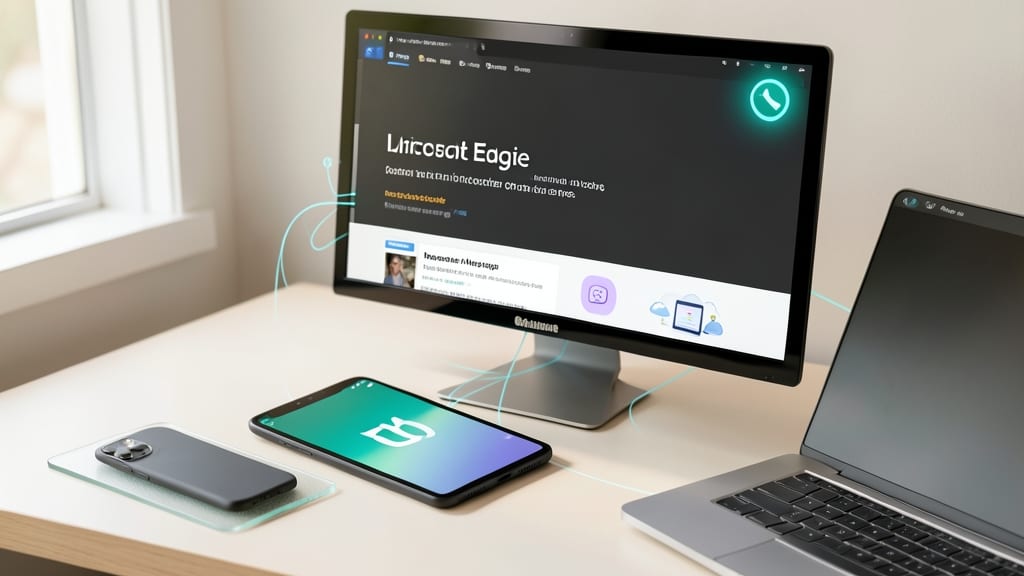
Tired of manually transferring bookmarks or passwords between your phone, tablet, and laptop? Microsoft Edge’s built-in sync feature eliminates that frustration by automatically keeping your bookmarks, passwords, and extensions in sync across all your devices—no extra apps or manual setup required.
Just sign in with your Microsoft account, and Edge handles the rest. Your favorites update instantly, your saved logins auto-fill seamlessly, and even your extensions stay enabled on every device. The sync works in real time, so you’ll never lose track of important tabs or settings again.
This is a game-changer for anyone juggling multiple devices, whether you’re a remote worker switching between laptop and tablet or a student moving from desktop to phone. No more hunting for lost bookmarks—just a unified browsing experience everywhere. ✨