
Coding
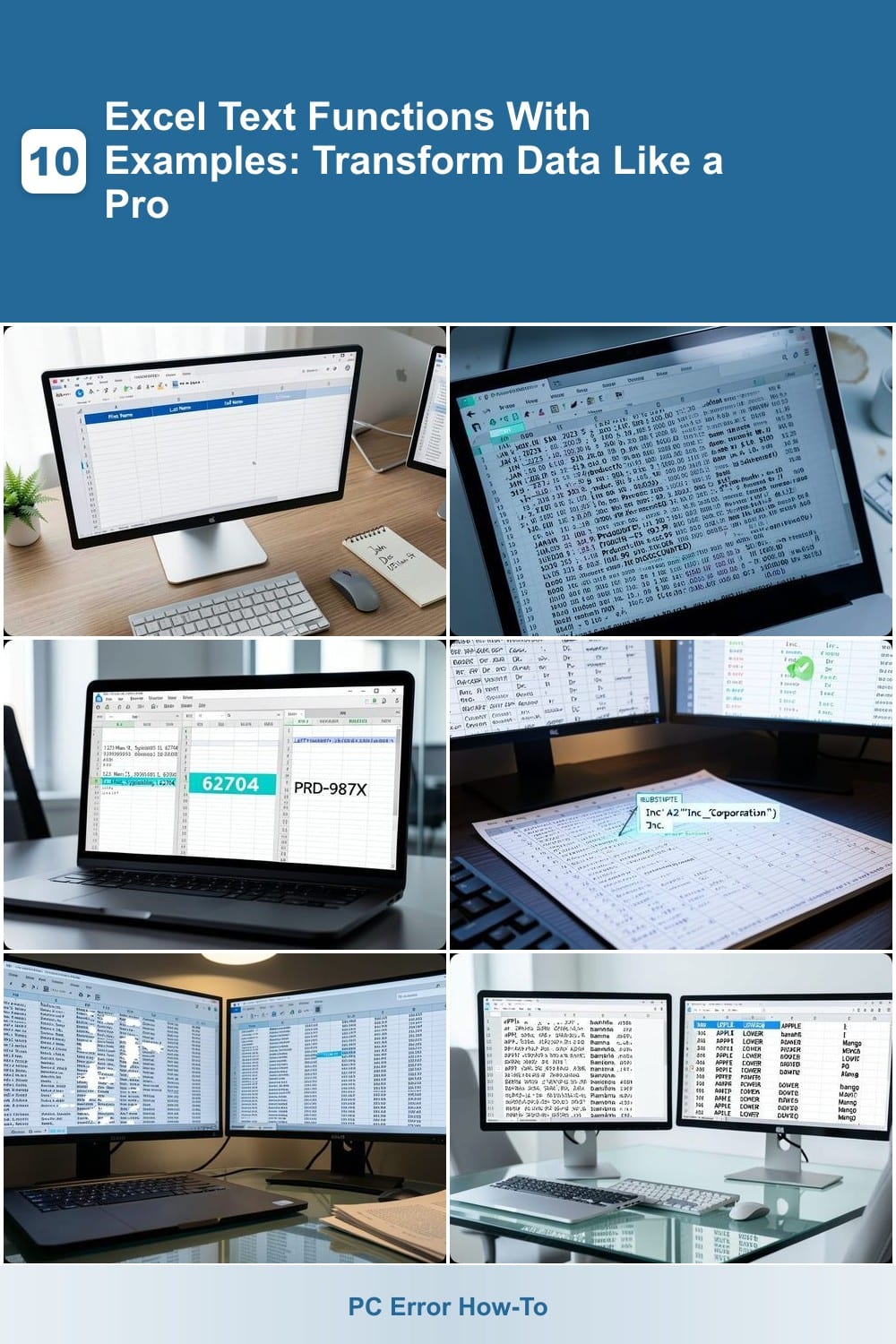
Mastering Excel's text functions can turn messy data into polished, professional reports. These 10 essential functions will help you clean, manipulate, and extract text like a spreadsheet expert—with practical examples for each.
Concatenate Function for Combining Text Fields

Tired of manually typing out full names or addresses from separate columns? The CONCATENATE function in Excel merges text from multiple cells into one seamless entry with just a simple formula. Whether you're combining first and last names, street addresses, or product descriptions, this function saves time and eliminates errors.
With CONCATENATE, you can merge up to 30 text items in a single formula—perfect for creating professional labels, reports, or databases. For example, =CONCATENATE(A2, " ", B2) combines first name (A2) and last name (B2) with a space in between. The newer TEXTJOIN function (Excel 2016+) offers even more flexibility, letting you add custom delimiters like commas or hyphens.
This function is a must-have for data analysts, HR professionals, or anyone managing structured information. Give it a try—your spreadsheets will thank you! ⚡
Text Function for Cleaning Up Data

When your Excel data looks like it was pasted from a chaotic web source or user-entered with inconsistent formatting, the TEXT function is your cleanup superhero. Unlike TRIM, which only handles spaces, TEXT gives you precise control over formatting—converting messy strings into standardized outputs like dates, currency, or even plain text.
Use it to force a column of dates into a uniform format (e.g., =TEXT(A1,"mm/dd/yyyy")), or strip non-printing characters from imported text with =TEXT(A1,"@"). The @ symbol ensures only visible characters remain, while custom number formats let you dictate everything from decimal places to time displays. For example, =TEXT(A1,"0.00%") instantly converts decimals to percentages.
This is the go-to for analysts, accountants, or anyone wrestling with imported data that refuses to behave. Whether you're prepping reports or ensuring consistency across datasets, TEXT turns chaos into clarity with just a few keystrokes. ✨
Left Right and Mid Functions for Extracting Partial Text
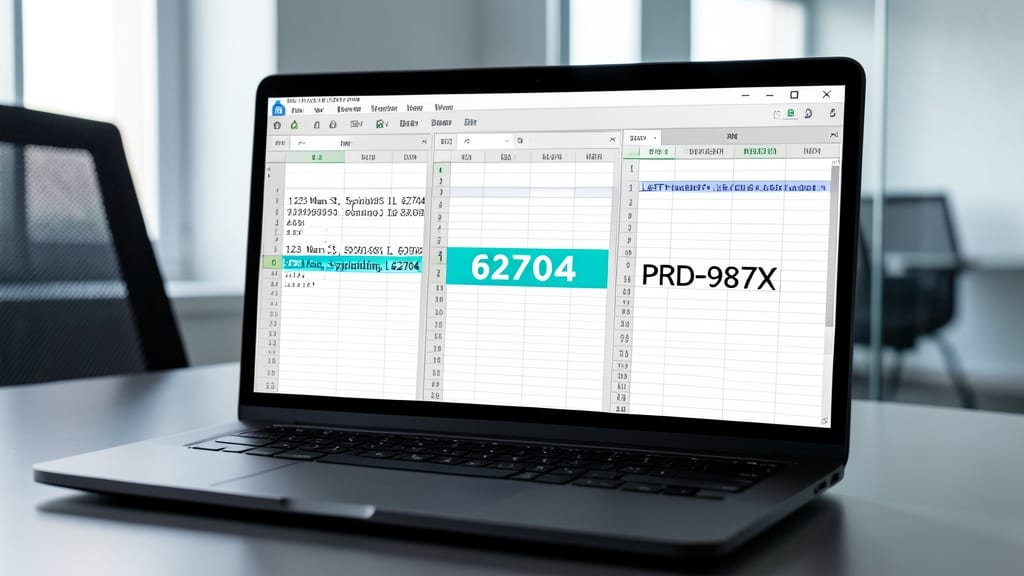
When you need to pull just a few characters from a longer string—like a ZIP code from an address or a product code from a description—Excel’s LEFT, RIGHT, and MID functions are your secret weapons. These tools let you extract specific segments without writing complex parsing logic, saving time on repetitive tasks.
The LEFT function grabs characters from the start (e.g., =LEFT(A1,5) extracts the first 5 characters of cell A1), while RIGHT pulls from the end (e.g., =RIGHT(A1,3) snags the last 3 digits, perfect for ZIP codes). MID offers precision by specifying a starting position and length (e.g., =MID(A1,7,4) extracts 4 characters starting at position 7). Combine them to isolate any substring—like extracting a middle initial or a serial number—without manual copying.
Perfect for data analysts, marketers, or anyone dealing with structured text fields, these functions turn messy strings into clean, usable data with just a few clicks. ⚡
Find and Substitute Functions for Text Replacement

Tired of manually fixing typos or inconsistent abbreviations across hundreds of rows? The SUBSTITUTE and FIND functions in Excel are your dynamic text-replacement power tools. They let you locate and swap specific text patterns—whether it’s correcting "Inc." to "Corporation," standardizing "Dr." to "Doctor," or removing placeholder text like "N/A."
Use SUBSTITUTE(text, oldtext, newtext) to replace exact matches, or FIND(text, within_text) to locate substrings before acting on them. For example, =SUBSTITUTE(A1, "Inc.", "Corporation") instantly updates all instances in cell A1. The **wildcard character (*)** even lets you replace partial matches (e.g., =SUBSTITUTE(A1, "Dr.*", "Doctor")). These functions work silently across entire columns with Ctrl+Enter, making them perfect for batch cleaning.
Data analysts and business users will love these for standardizing reports or cleaning imported datasets. Even casual users can fix typos in bulk without retyping. ⚡
Trim Function for Removing Unwanted Spaces

When copying data from web pages or PDFs, you’ve likely ended up with messy extra spaces that break your formulas. The TRIM function is your secret weapon—it removes leading, trailing, and extra spaces between words automatically, saving hours of manual cleanup.
Simply type =TRIM(A1) to instantly fix irregular spacing in cell A1. Unlike other functions, TRIM handles multiple spaces (like those from web tables) and even non-breaking spaces—perfect for datasets imported from external sources. It’s also case-sensitive to text, so it won’t alter your content, just the formatting.
This is the go-to tool for data analysts, marketers, or anyone importing messy datasets. Once you master it, you’ll wonder how you ever lived without it! ✨
Upper Lower and Proper Functions for Text Formatting

Tired of inconsistent text case ruining the professional look of your reports? The UPPER, LOWER, and PROPER functions instantly standardize text—whether you need all-caps labels, lowercase database entries, or properly capitalized names.
Use UPPER() to convert text like "apple" to ALL CAPS (great for headers or acronyms), LOWER() to standardize entries like "Apple" to all lowercase (ideal for search queries), or PROPER() to fix mixed-case text like "jOhN dOE" into "John Doe"—perfect for names and titles. These functions work with any text string and require zero configuration beyond the formula itself.
Accountants standardizing invoice formats, marketers cleaning up email lists, or anyone exporting data to other systems will love how these functions enforce consistency. ⚡
Len Function for Counting Characters

Need to enforce character limits without manual counting? The LEN function instantly reveals text length—ideal for social media managers, developers, or anyone validating data constraints.
Simply type =LEN(A1) to count characters in cell A1. Use it to check Twitter’s 280-character limit, ensure passwords meet security requirements, or verify product descriptions fit within database fields. It even works with spaces and special characters for precise validation.
Perfect for marketers testing ad copy, developers validating API inputs, or anyone maintaining clean datasets. ⚡
Search Function for Finding Text Within Cells

Tired of hunting for hidden text in messy datasets? The SEARCH function is your flexible Swiss Army knife for finding substrings—no exact matches required. Unlike FIND, it ignores case and locates partial text, making it perfect for real-world data where consistency is rare.
Use it to pinpoint product codes like "A123" in descriptions, validate email formats, or flag customer names containing "Smith"—even if spelled differently. The formula =SEARCH("text", cell) returns the position of the match, or #VALUE! if nothing’s found. Combine it with IFERROR to handle missing results gracefully, or nest it in LEFT/RIGHT to extract surrounding text.
This is the go-to tool for data analysts, marketers, and anyone wrestling with unstructured text. Try it next time you need to find "iPhone" in a column of product names—no complex logic needed. ✨
Value Function for Converting Text to Numbers

Stuck with numbers buried in text—like "$49.99" or "SKU-12345"—that refuse to play nice in calculations? The VALUE function is your secret weapon for instantly converting text-based numbers into usable values Excel can crunch.
Simply enter =VALUE(text), and it strips formatting to return pure numeric data. Need to sum prices? It handles currency symbols, commas, and even scientific notation. For example, =VALUE("1,234.56") becomes 1234.56, ready for formulas. Pair it with SUBSTITUTE to remove unwanted prefixes before conversion—like turning "Item #5" into 5 for sorting.
Accountants, inventory managers, and data analysts will love this for cleaning up imported datasets. It’s also perfect for quick fixes when pasting web-scraped data into spreadsheets. ⚡
Flash Fill for Automating Text Extraction

Tired of manually splitting text into columns or extracting parts of strings? Flash Fill in Excel is your secret weapon—it learns from your first few examples and auto-fills the rest in real time. No formulas, no complex logic, just point-and-click efficiency for tasks like separating names, emails, or product codes.
To use it, type the pattern you want in a blank cell (e.g., just the first name from a full name column), then press Ctrl+E—Excel instantly fills the rest. It handles dates, domains, and custom delimiters automatically, even adapting to irregular patterns. Best of all, it’s built into Excel 2013 and later, so no add-ins required.
Perfect for data analysts, HR teams, or anyone dealing with messy imports—this tool cuts repetitive tasks from minutes to seconds. Give it a try next time you’re stuck parsing text manually! ✨